Adding a Credit Card Payment Type
In this section, we’ll cover instructions for creating credit card Payment Types. You can configure credit card Payment Types to calculate an "upcharge" automatically when the Payment Type is applied to the invoice. Credit Card Upcharges are used to recoup credit card fees charged by the payment processor.
If you apply upcharges to credit card purchases, ensure that your staff use the correct Payment Type when customers use a combination debit/credit card to pay. If a credit card Payment Type with upcharges active is used as the Payment Type on an invoice where the customer chooses to pay by debit with their combination card, the credit card upcharges will still apply to the transaction, which could result in your business receiving penalties from the customer's bank.
We recommend that you train staff to ask the customer how they intend to pay (debit or credit) and choose the appropriate Payment Type.
The Disable Debit option has been deprecated and is no longer available.
Creating a Credit Card Payment Type
-
In EPASS, go to Tools > System Maintenance. In the Tables tab, click Payment Type, and then click Open.

-
In the Payment Type window, click Add.

-
Fill in the required fields:

Code Enter a unique identifier code for the payment type. This code is used in multiple areas of EPASS to identify the payment type, including on reports. Description Enter a description of this payment type. G/L Account Select the G/L account to link this payment type to. -
Select the Credit Card checkbox.

-
In the Payment Processing area, select EPASS PAY - Credit from the Type dropdown.

-
If you require signature capture with credit card payments, select the Request Signature if Applicable checkbox.
NotePrevent Duplicate Card Payments is used for fraud prevention, and we recommend that this setting is always selected.
-
Do the following if you want to apply upcharges to credit card payments. Otherwise, skip to step 8.
Adding an Upcharge-
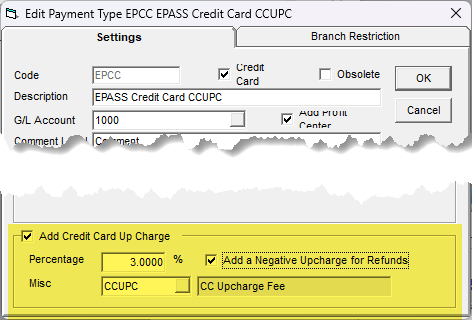
Near the bottom of the Payment Type window, select Add Credit Card Up Charge. This will apply a credit card upcharge at the time of payment. (If you can’t select Add Credit Card Up Charge, make sure that you’ve selected the Credit Card checkbox located next to the Code field.)
-
Fill in the upcharge Percentage.
-
In the Misc dropdown, select the miscellaneous code that you use for credit card upcharges.
-
(Optional) Select Add a Negative Upcharge for Refunds if your policy is to reverse the credit card upcharge on refunds. With this checkbox selected, a negative amount equal to the original upcharge amount is added to the invoice when the payment is refunded.
-
-
Click OK.
See Also
- Adding a Debit Card Payment Type
- Adding a Pre-Authorization Payment Type
- Taking a Payment
- Applying a Credit Card Upcharge
March 9, 2026